Get Started - A Complete User Guide
This guide outlines the lifecycle of this application. Since it is written in Typescript it can be executed directly on various platforms through NodeJS. Please check this application's OS support matrix for compatibility. Additionally a Docker Image is provided.
The recommended installation path is using docker compose, since this nicely manages configuration and dependencies. How to setup Docker, docker compose or a NodeJS environment on your host is out of the scope for this document.
Find examples for the various deployment options within this guide.
Installation
The latest tag should always represent the latest stable release, whereas the beta tag provides a semi-stable preview of the upcoming release, while the nightly tag offers the latest development build, which might not be stable.
Upgrading to v5
Version 5 contains breaking changes:
- Node.js
26or newer is required when installing through npm - The Docker image no longer contains a shell and the library path is no longer world-writable, see Runtime Hardening
- Proxy environment variables are only applied, if explicitly enabled
- Boolean options set through environment variables are only enabled by
true,1,yesoron- values likefalsenow disable the option, see the CLI Reference - The Influx metrics field of MFA warnings was renamed from
warn-mfa_resend_errortowarn-mfa_error
Docker images are available on DockerHub for linux/amd64 and linux/arm64 platform. Alternatively the docker image tar archive is available from the Github releases and can be installed using docker load --input <fileName>
Create a docker-compose.yml file, similar to the one below. Please add your Apple ID credentials and desired location of the library on disk. Optionally, add the timezone and your local users' UID and GID - if omitted, the application runs as UID 100 and GID 101, which then need write access to the library directory.
services:
  photos-sync:
    image: steilerdev/icloud-photos-sync:latest
    container_name: photos-sync
    restart: unless-stopped
    user: <uid>:<gid>
    environment:
      APPLE_ID_USER: "<iCloud Username>"
      APPLE_ID_PWD: "<iCloud Password>"
      TZ: "Europe/Berlin"
      SCHEDULE: "0 2 * * *"
      ENABLE_CRASH_REPORTING: true
    ports:
      - 80:80
    volumes:
      - <photos-dir>:/opt/icloud-photos-library
Plain text username/password
If you don't want to store your plain text username and/or password in the docker environment, the username file and password file options (APPLE_ID_USER_FILE and APPLE_ID_PWD_FILE) can be used instead of APPLE_ID_USER and APPLE_ID_PWD. They point to files containing the respective value and work well with Docker secrets. Trailing line breaks are removed from the file content.
services:
  photos-sync:
    image: steilerdev/icloud-photos-sync:latest
    environment:
      APPLE_ID_USER_FILE: /run/secrets/apple_id_user
      APPLE_ID_PWD_FILE: /run/secrets/apple_id_pwd
    secrets:
      - apple_id_user
      - apple_id_pwd
    # ...
secrets:
  apple_id_user:
    file: ./apple_id_user.txt
  apple_id_pwd:
    file: ./apple_id_pwd.txt
Alternatively, it is possible to omit the username and/or password option entirely. In this scenarios, the username/password needs to be provided manually on each startup from the command line.
To input the data into the running Docker container it needs to be started with tty: true and stdin_open: true. Once the container was started, you can attach to the running icloud-photos-sync process using docker attach photos-sync, and detach with the sequence CTRL-p CTRL-q.
To execute another command (e.g. archive), use docker compose run -it --rm photos-sync <command> to open tty and stdin.
Get the latest image by running:
docker compose pull
Get the latest image by running:
docker pull steilerdev/icloud-photos-sync:latest
Node.js 26 or newer is required. When setting up the environment, please keep the currently recommended NodeJS version in mind.
The application can be installed (globally) from npm using:
npm install -g icloud-photos-sync
Alternatively the npm pack tar archive is available for download from the Github releases and can be installed using npm install -g <fileName>
To build the application from source, clone this repository, go to app/ and build it:
git clone https://github.com/steilerDev/icloud-photos-sync.git
cd icloud-photos-sync/app/
npm ci
npm run build:dev
Usage
When launching this application without specifying a command, it will start in daemon mode - executing the synchronization based on the provided cron schedule using the supplied credentials (or prompting for credentials upon startup, in case none are supplied).
Unfortunately iCloud's application specific passwords don't support access to the iCloud Photos Library - therefore you will need to supply your Apple ID password - Passkeys and security keys are not supported.
The following commands are available:
daemon(default): Runs the synchronization based on the schedulesync: Runs a single synchronization and exitstoken: Validates the trust token, acquires a new one (if necessary) and prints itarchive <path>: Synchronizes the library and archives the provided folder
Running docker compose up -d on the previously defined docker-compose.yml launches the app in daemon mode.
docker run -d --restart unless-stopped --name photos-sync \
    -v "</path/to/your/local/library>:/opt/icloud-photos-library" \
    -p 80:80 \
    --user <uid>:<gid> \
    -e TZ="Europe/Berlin" \
    steilerdev/icloud-photos-sync:latest \
    --username "<iCloud Username>" \
    --password "<iCloud Password>" \
    --enable-crash-reporting \
    --schedule "0 2 * * *"
Port
The WebUI listens on port 80 by default, which usually requires root privileges. Use the port option (e.g. -P 8080) to run as unprivileged user.
icloud-photos-sync \
    -u "<iCloud Username>" \
    -p "<iCloud Password>" \
    -d "</path/to/your/local/library>" \
    --enable-crash-reporting \
    --schedule "0 2 * * *"
npm run execute -- \
    -u "<iCloud Username>" \
    -p "<iCloud Password>" \
    -d "</path/to/your/local/library>" \
    --enable-crash-reporting \
    --schedule "0 2 * * *"
Password containing dollar sign ($)
In case your password contains a dollar sign, this might be mis-handled by your shell. You should wrap the password string in single quotes in order to preserve the string literal. E.g. [...] -p pas$word [...] would become [...] -p 'pas$word' [...].
The primary interface to interact with this application is the WebUI, available at http://<host>:<port>/ (port 80 by default). Configuration is performed through CLI arguments and/or environment variables, see the CLI Reference for a comprehensive list of all available options. Additionally an API is exposed through the integrated web server.
Authentication
Since this application needs full access to a user's iCloud Photos Library, a full authentication with Apple (including Multi-Factor-Authentication) is initially required. While this will acquire a trust token, Apple's system requires refreshing this token every ~30 days by providing a re-authentication utilizing an MFA code.
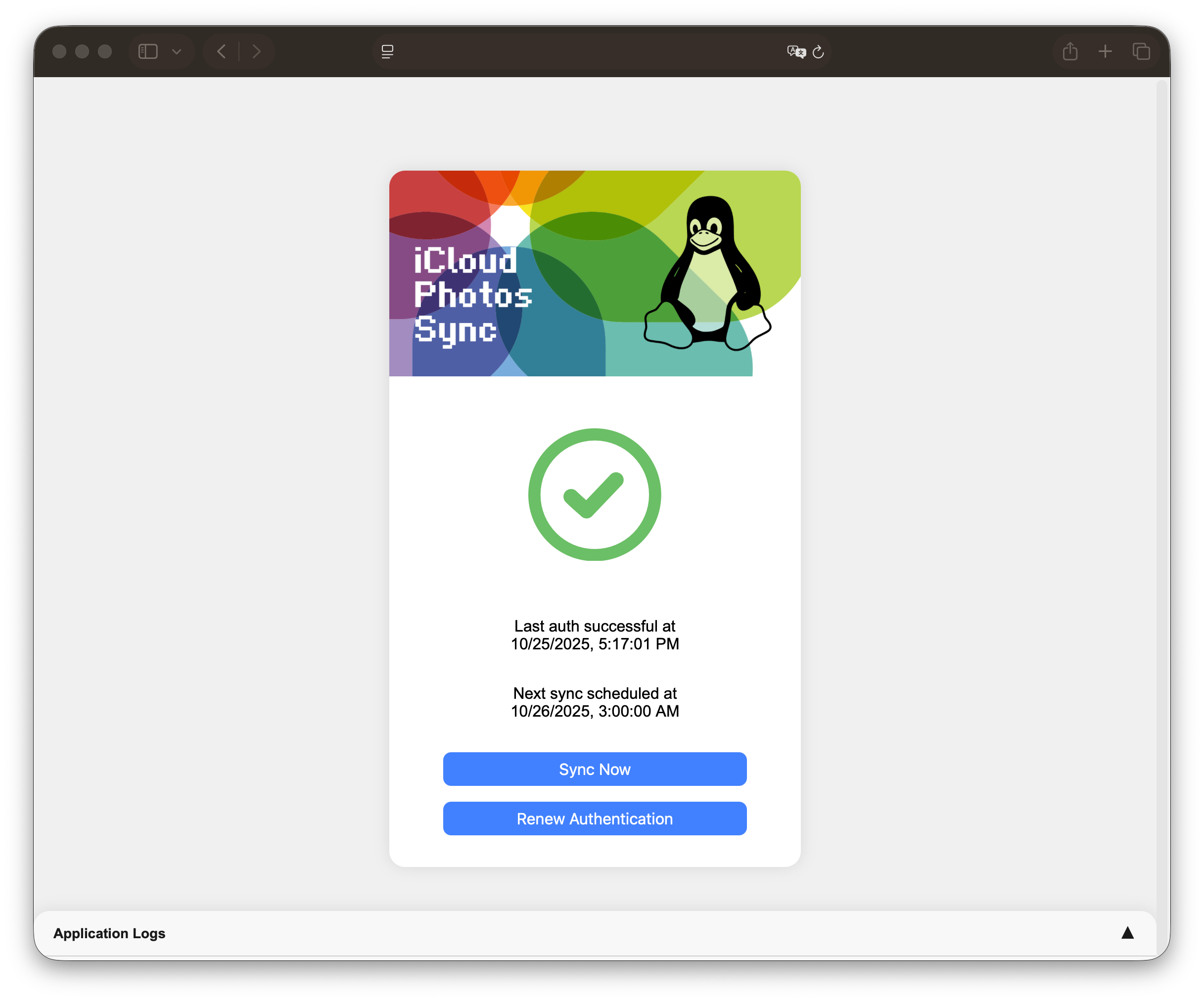
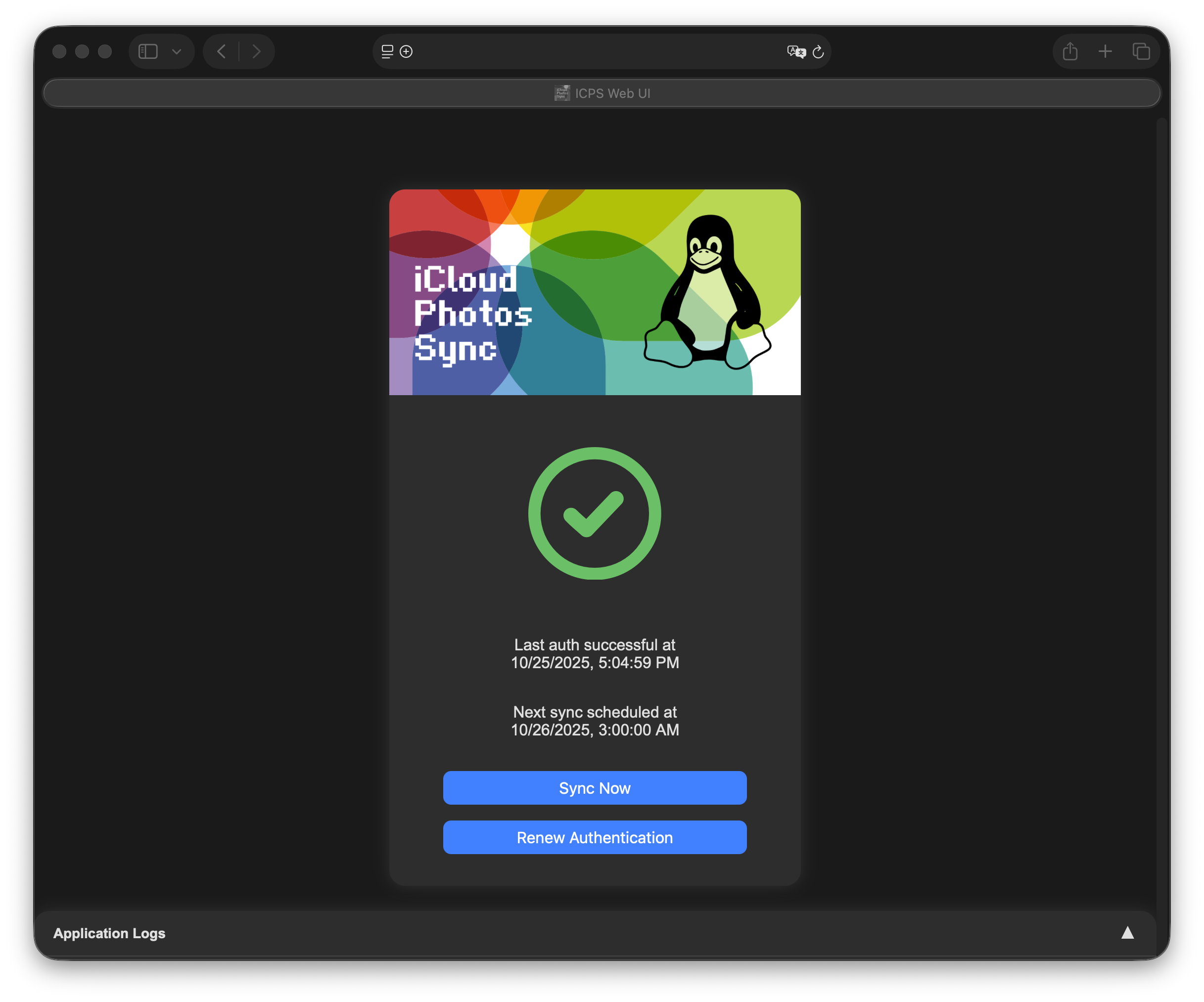
In order to perform authentication (without syncing any assets) to validate or acquire the trust token, navigate to the WebUI and select Renew Authentication.
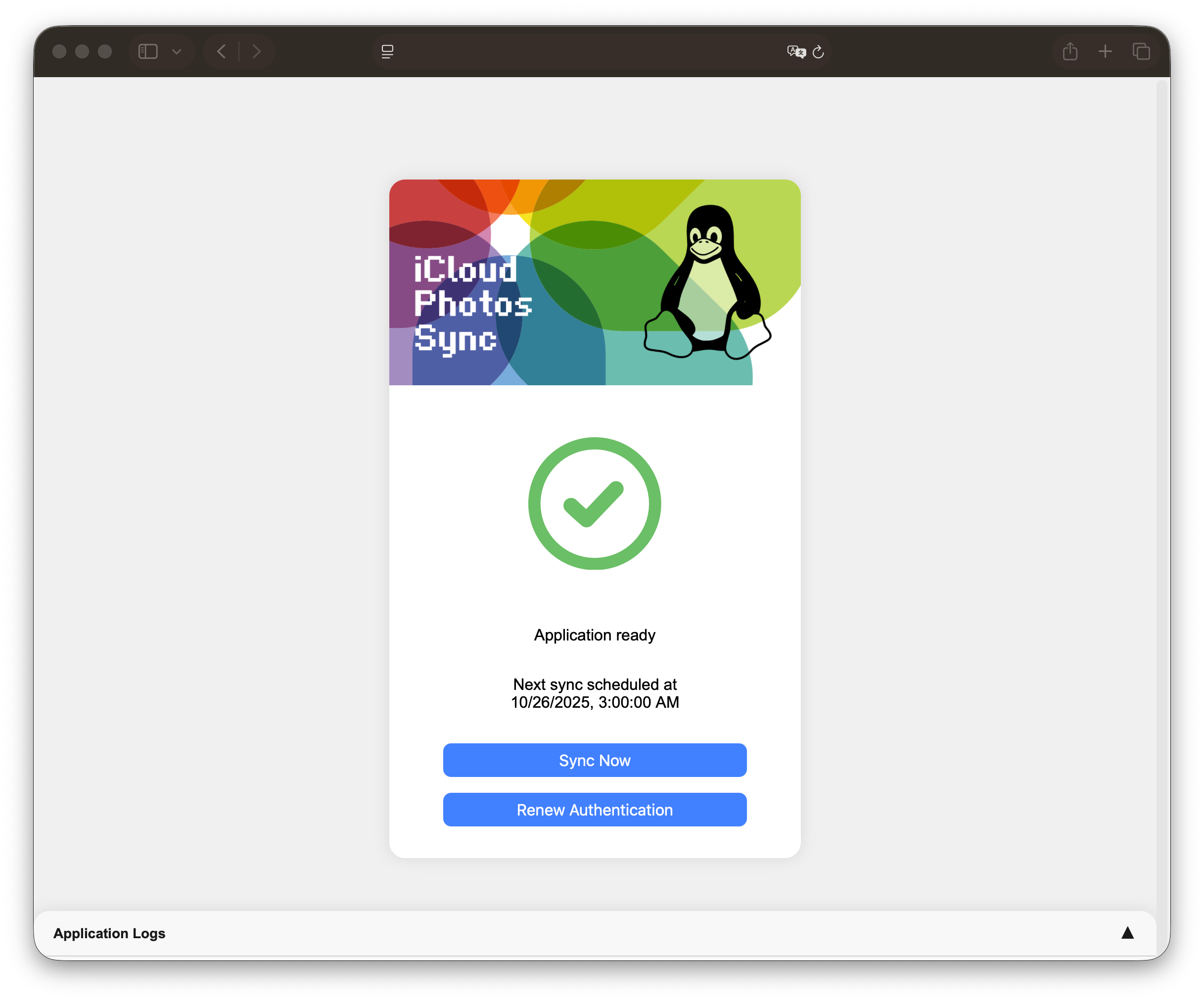
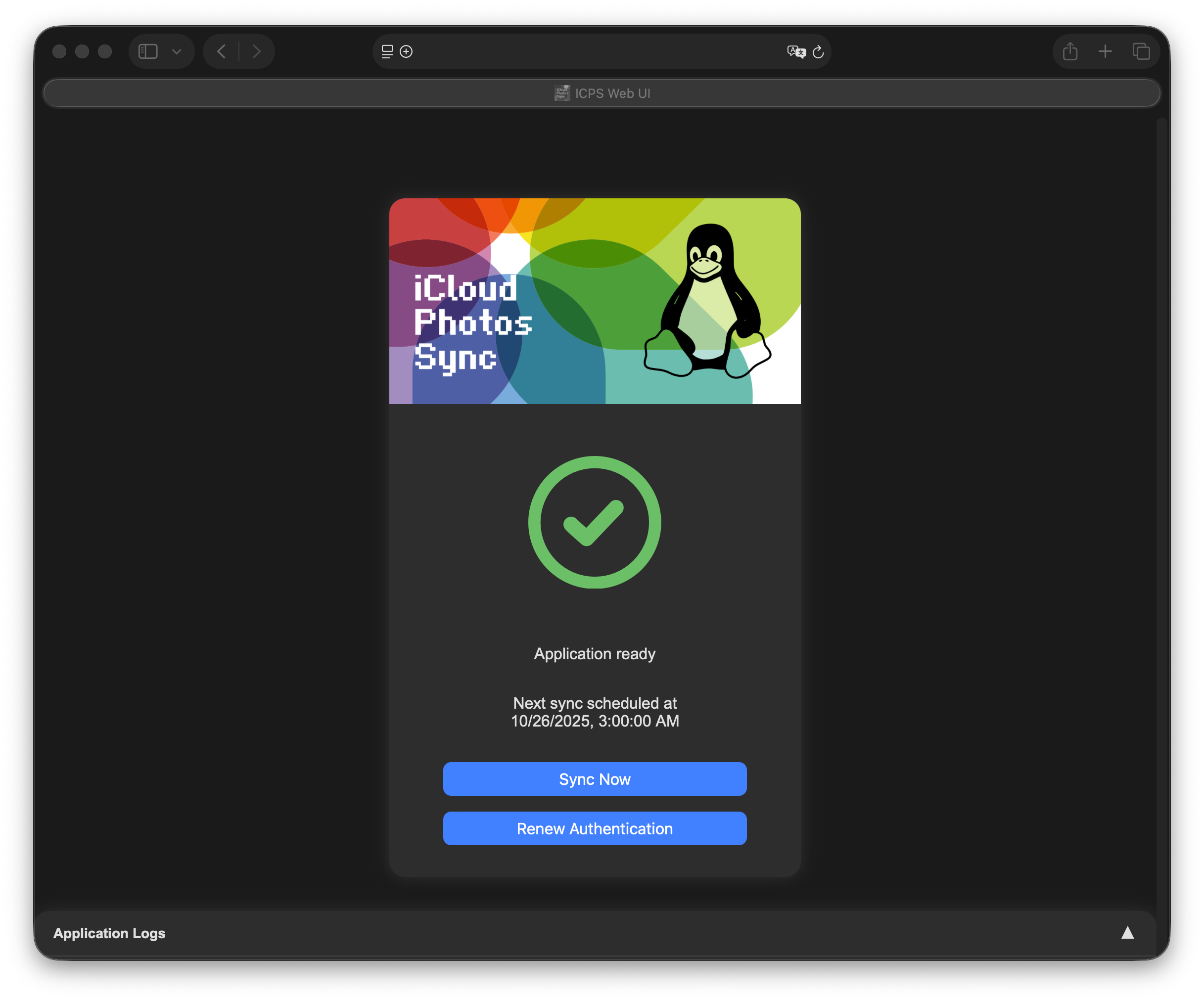
This will trigger the authentication flow and an MFA code will be pushed to your trusted devices. This will forward to a form to enter the 6-digit code - use the Submit button to confirm your submission.
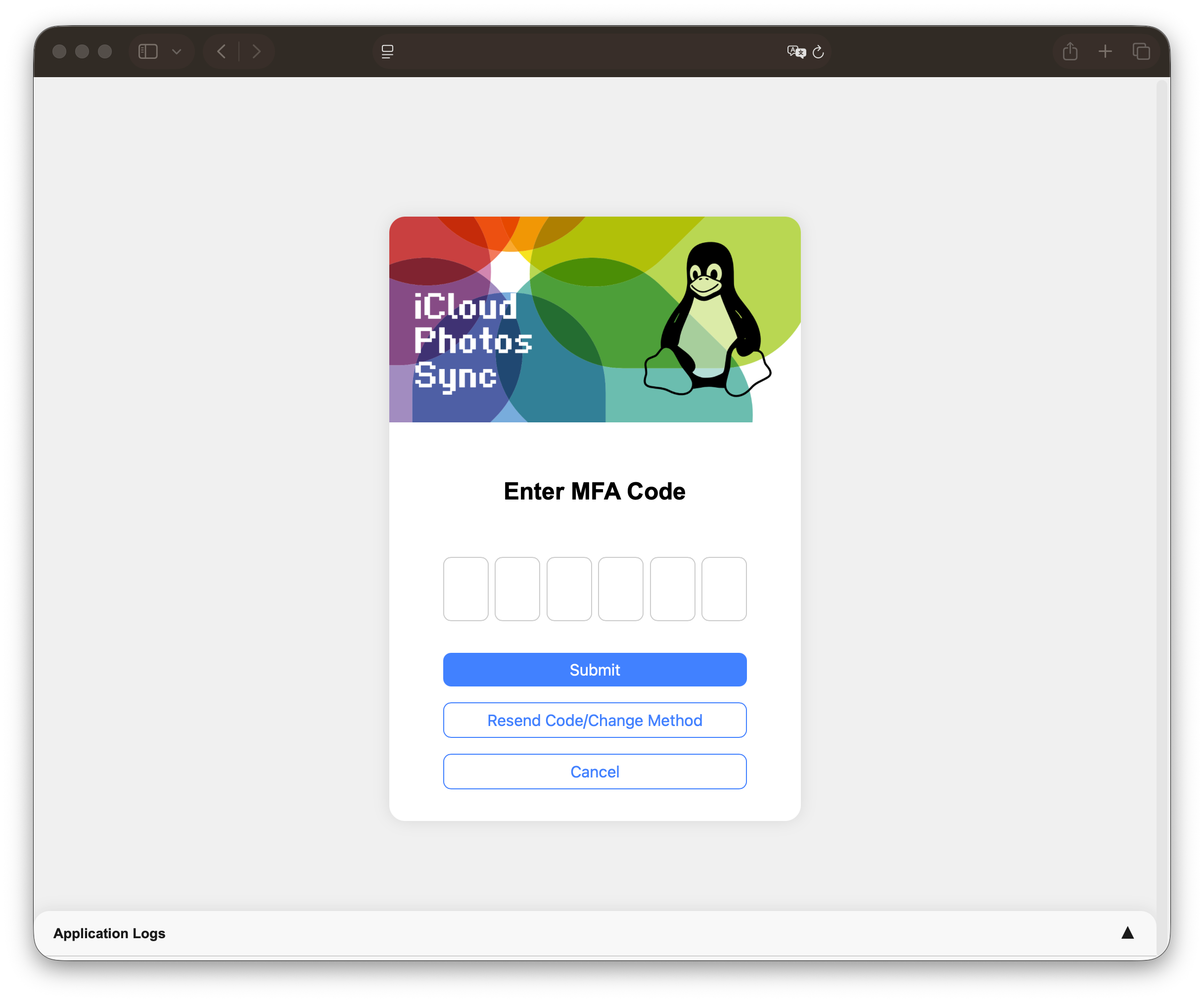
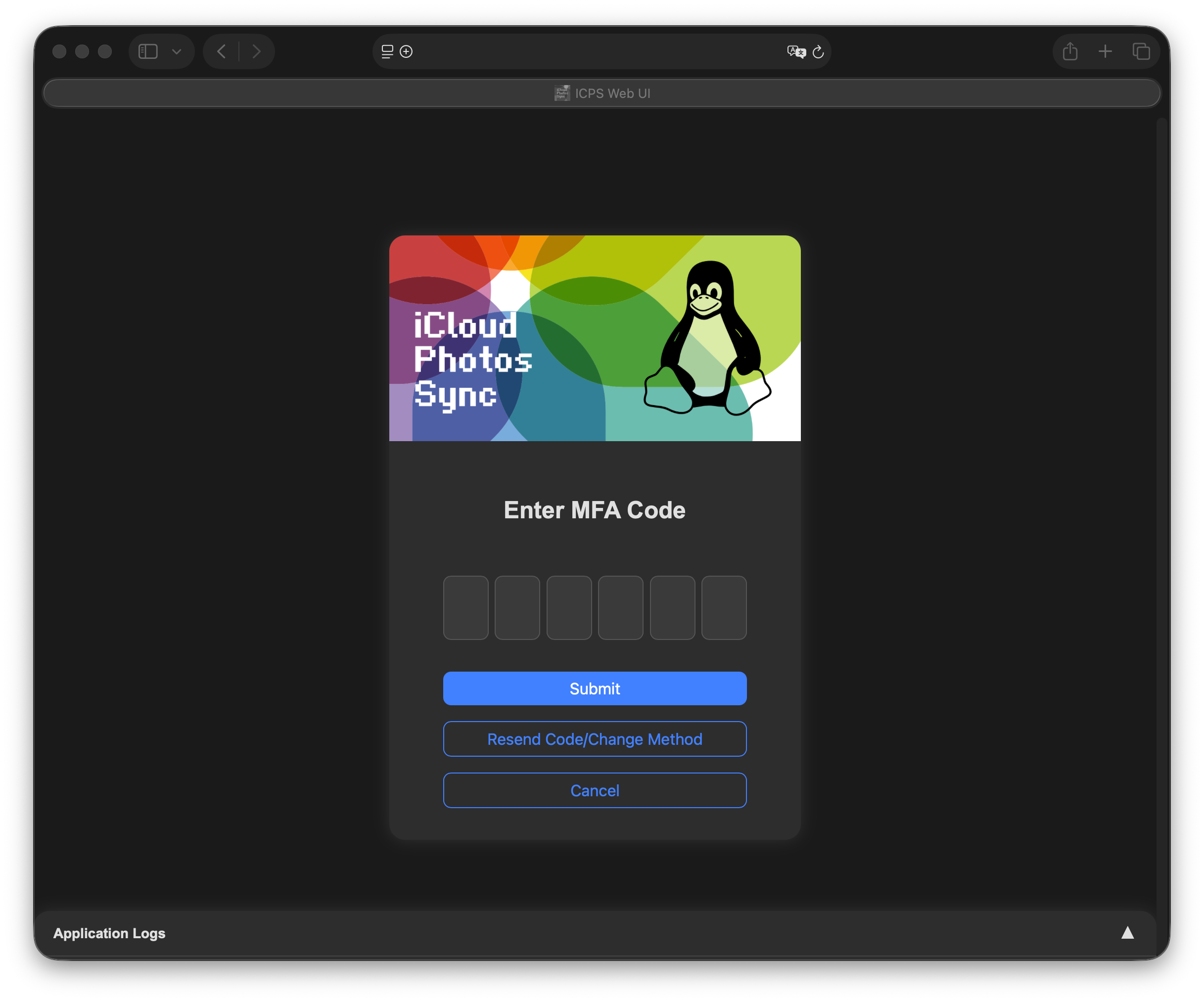
In case your trusted devices are not available and you need to resend the MFA code through other methods, select Resend Code/Change Method.
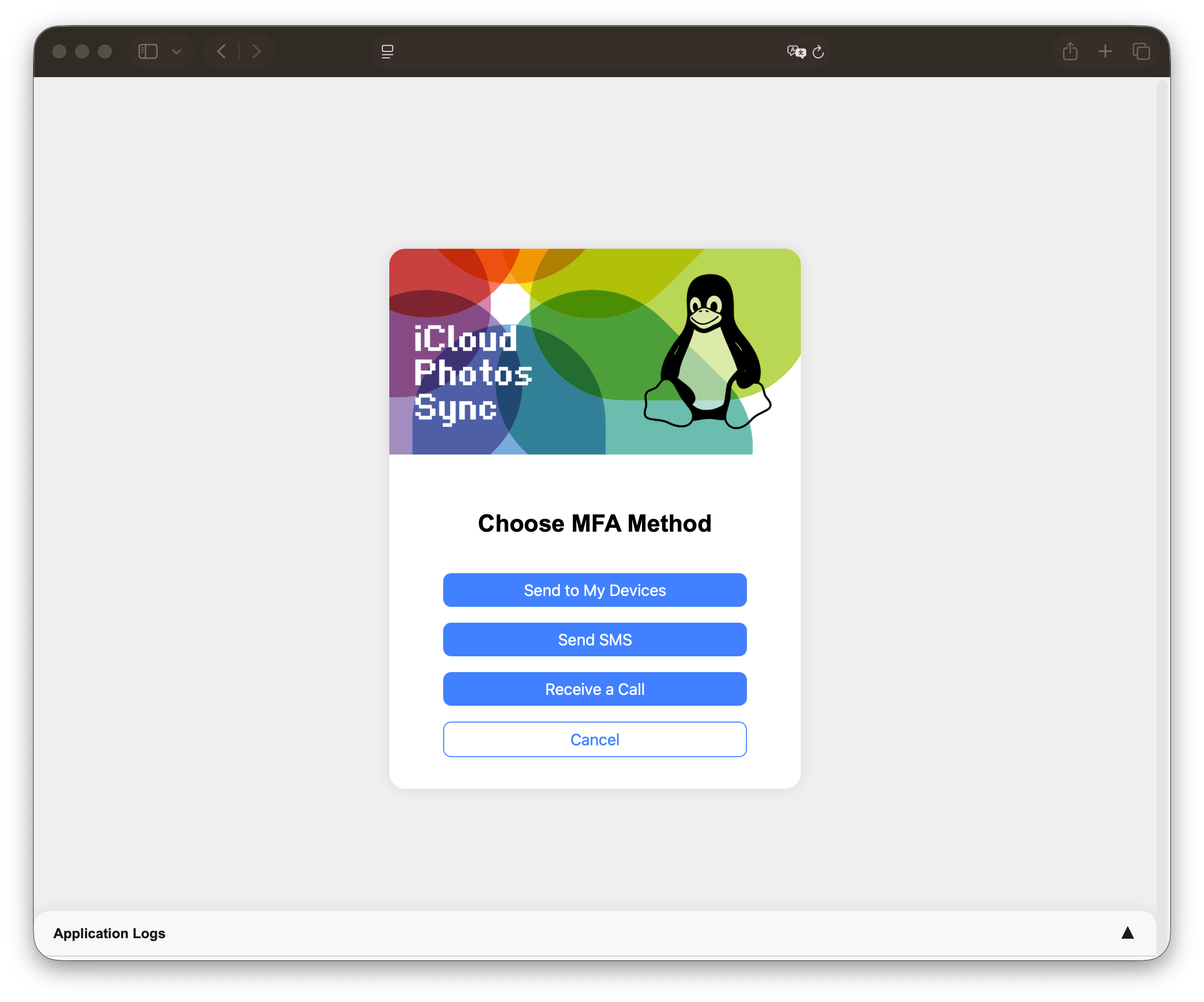
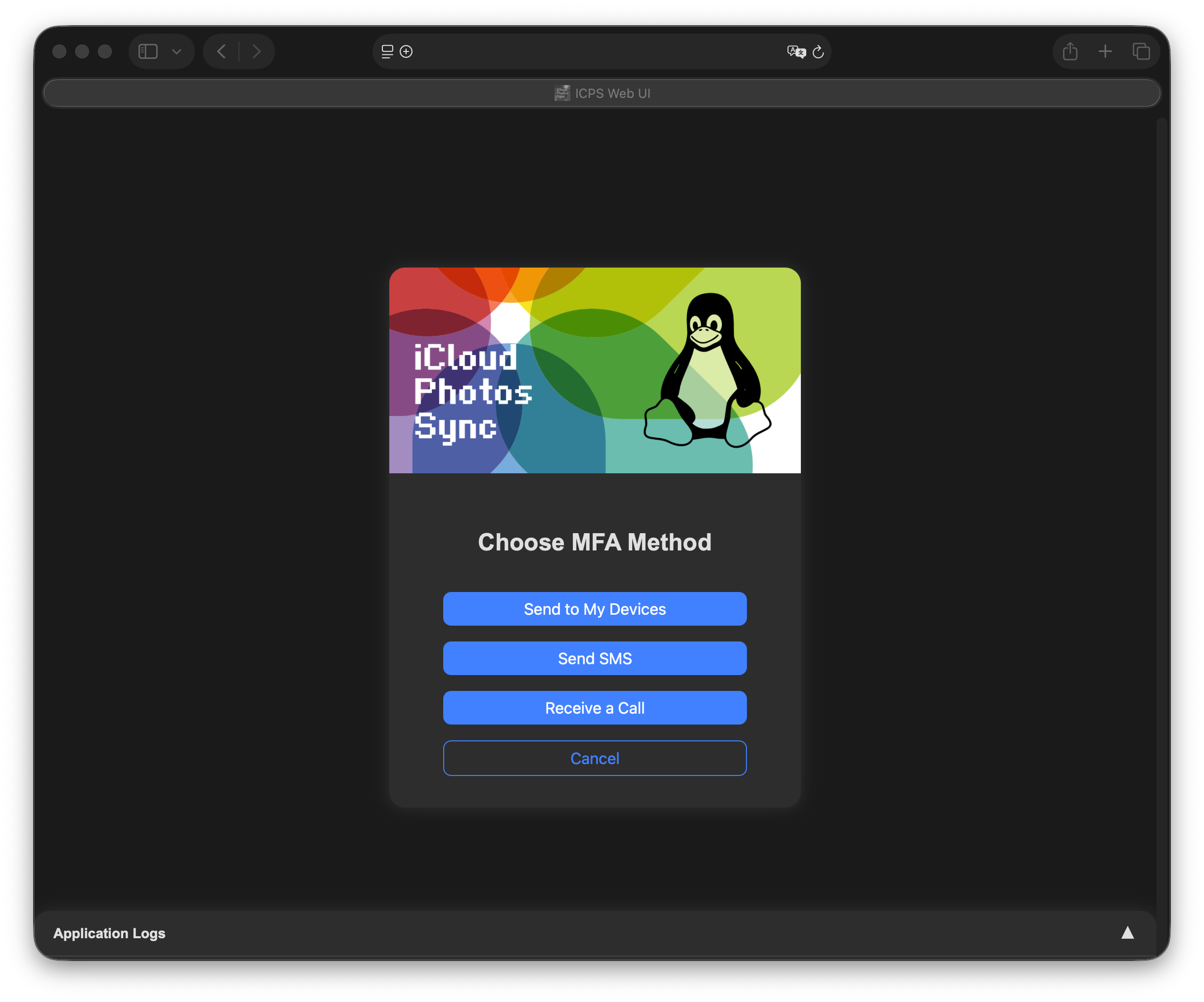
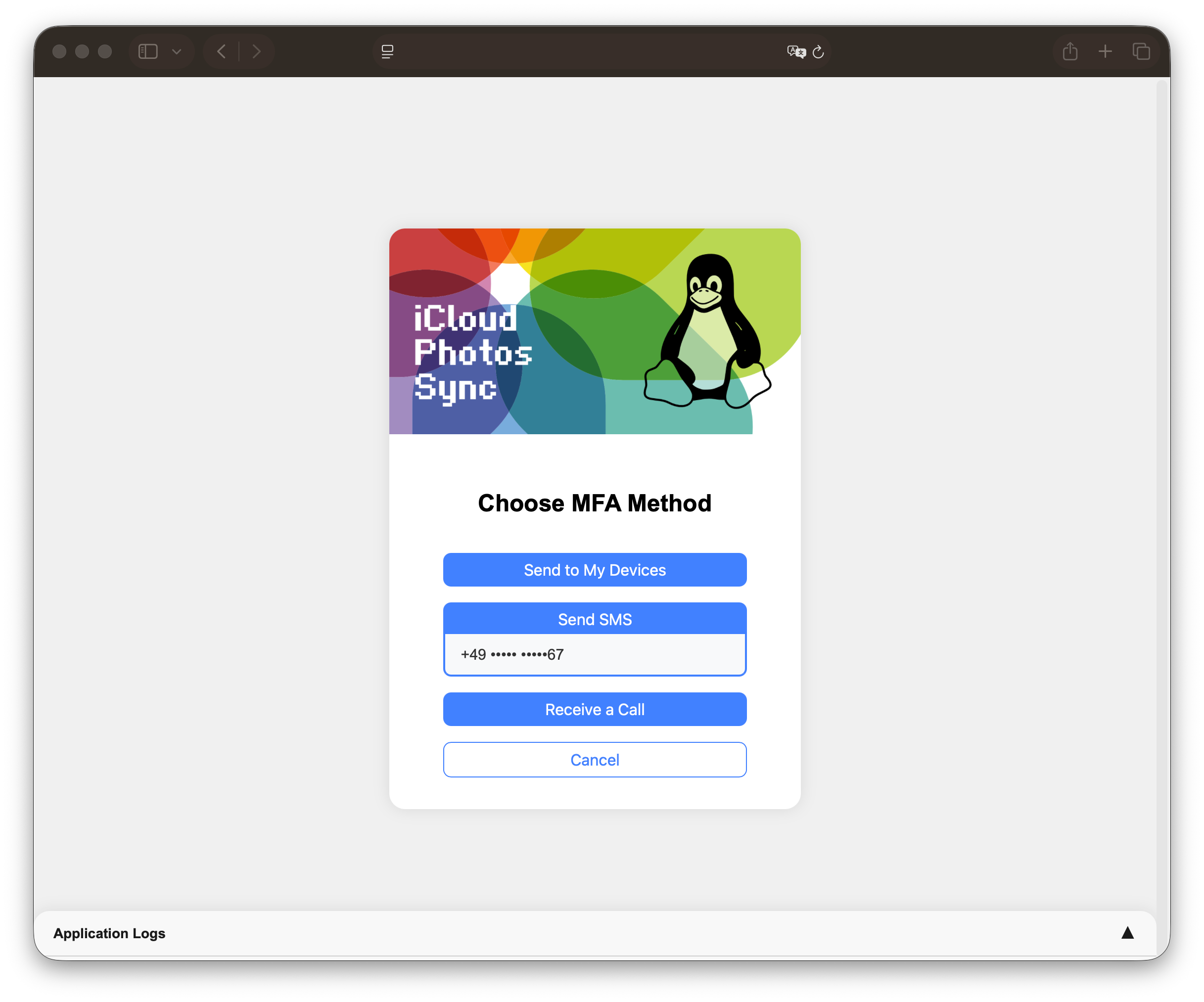
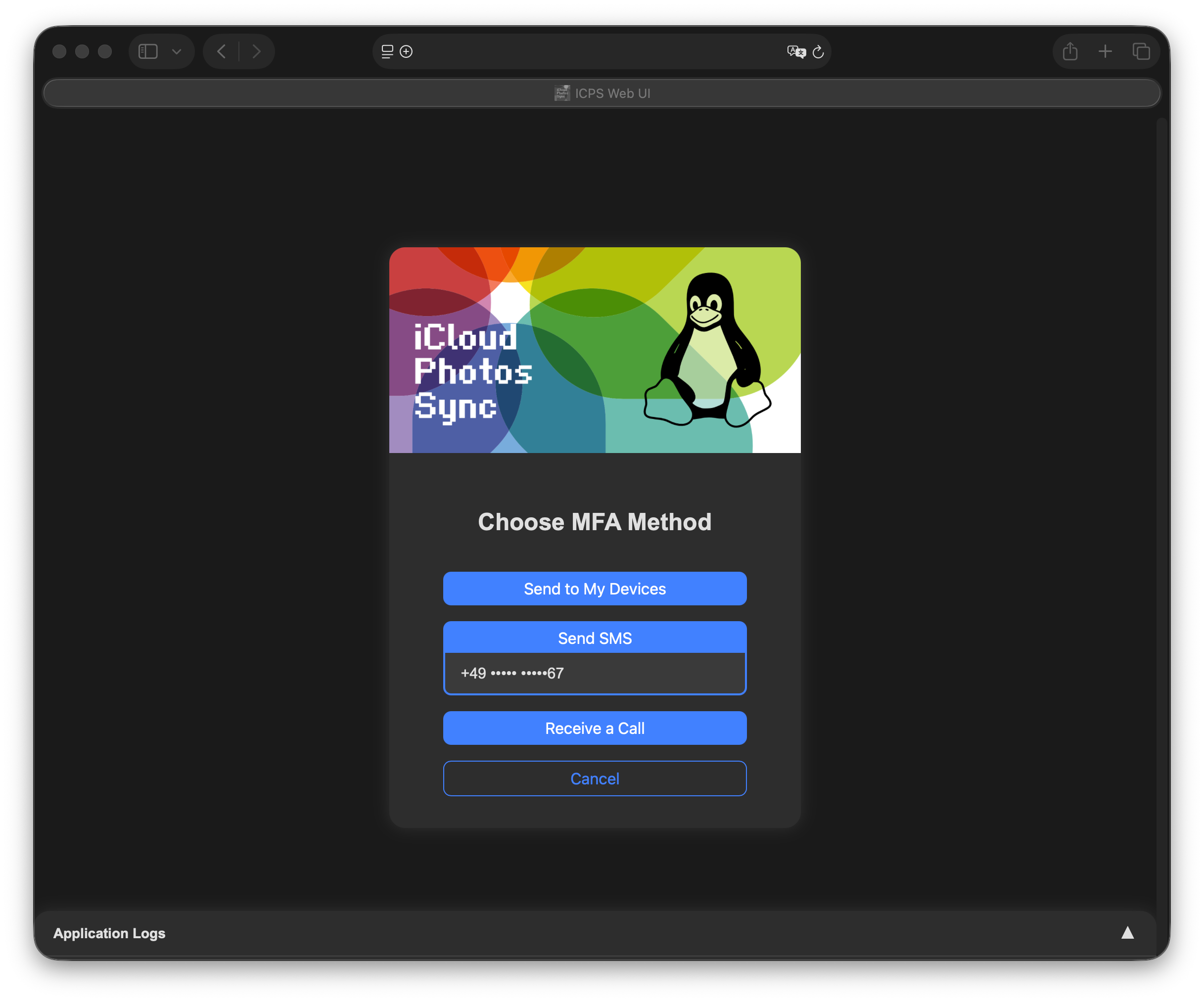
When selecting a phone based MFA method, the application will present all available 'trusted' numbers. Select the appropriate one for confirmation.
Once the code has been accepted, the program will run autonomously based on the configured cron schedule until an MFA code is required (~30 days).
Ad-Hoc Sync
When selecting Sync Now from the WebUI, the tool will perform authentication and proceed to perform a sync immediately.
The remote state will always be applied:
- Extraneous local files will be removed (exceptions are 'Archived Folders')
- Missing remote files will be downloaded
The synchronization will also create the folder structure present in the iCloud Photos Library, to achieve a user friendly navigation. If iCloud Shared Photo Library is enabled, the shared assets will be stored in the _Shared-Photos folder.
Hidden photos
Photos in the Hidden album are not synced by default. Enable the sync-hidden flag to include them: They are stored alongside all other assets, linked into the albums they belong to and additionally linked into the _Hidden-Photos album. Disabling the flag again will remove them from the local library upon the next sync.
File Structure
Since this application does not use any local database, it is imperative, that the file structure is not changed by any other application or user.
During the sync process various warnings might be produced within the application logs. The list of common warnings contains more details on them.
Syncing large libraries
Initial sync of large libraries can take some time. The download URLs, which are part of the fetched metadata, expire after roughly 15 minutes. Once they expired, the tool refreshes the metadata and continues with the remaining assets. As long as assets were downloaded since the previous refresh, this does not count towards the maximum number of retries. After 8 hours the session expires, which will lead to a failure of the ongoing sync. The tool will refresh the session, unless the maximum number of retries is reached. Restarting a previously failed sync will keep all previously successfully downloaded assets.
The iCloud API enforces rate limits, which especially affect libraries holding more than 10.000 assets. If a request is throttled, the tool waits for the time requested by iCloud and retries the request, without failing the sync. To reduce the number of throttled requests, or if you encounter SOCKET HANGUP errors, you can additionally limit the rate of metadata fetching, e.g. using 1/20.
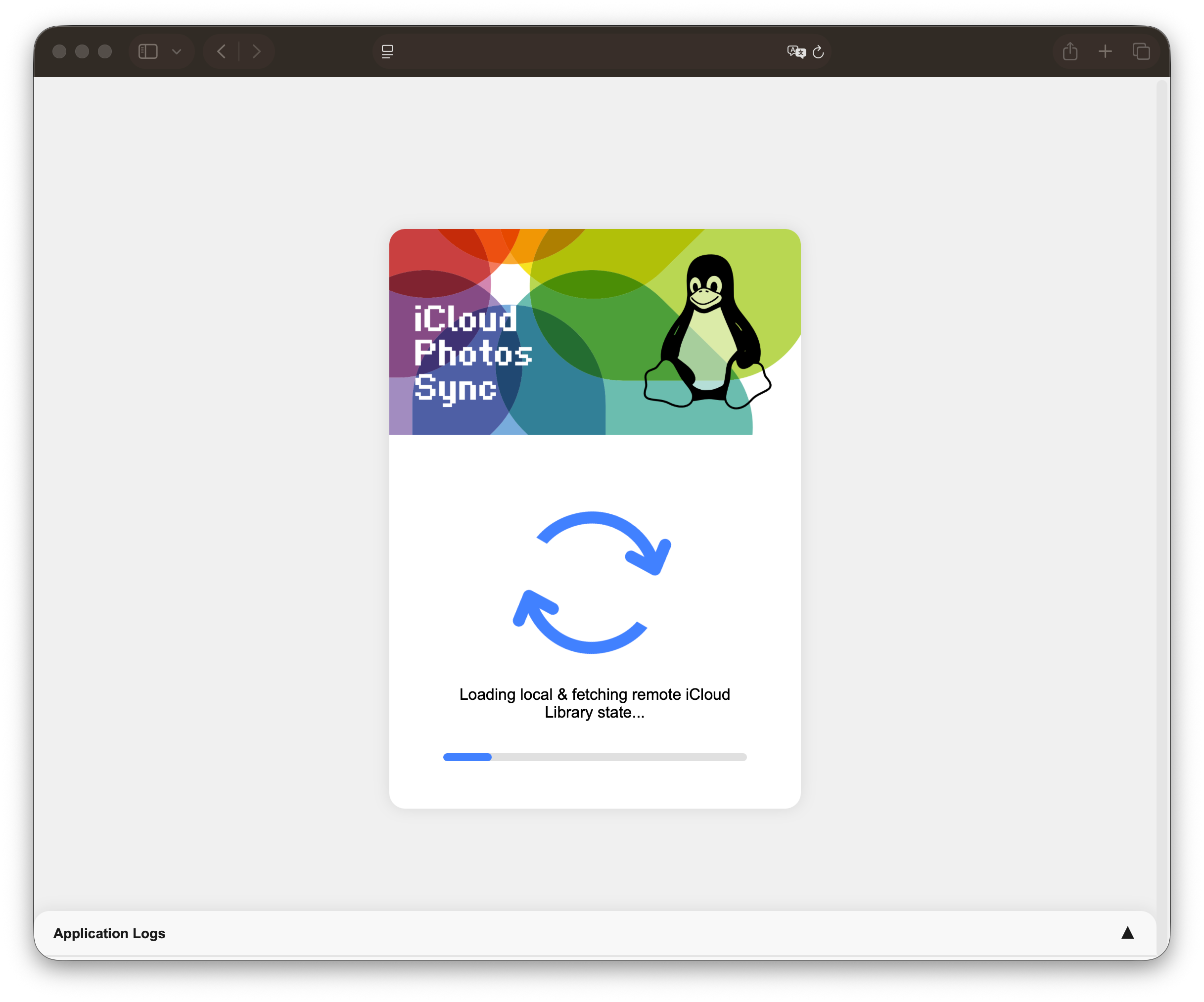
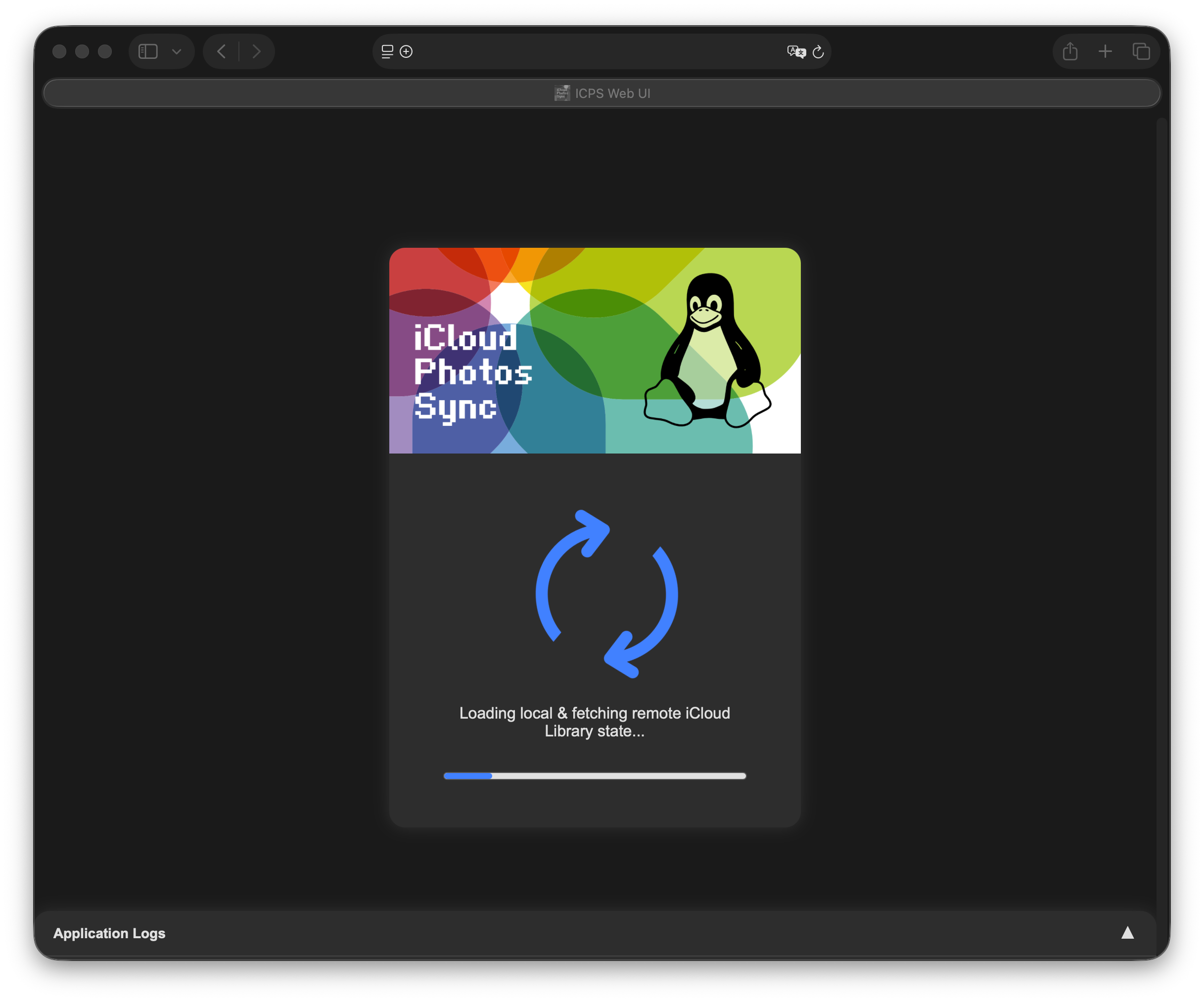
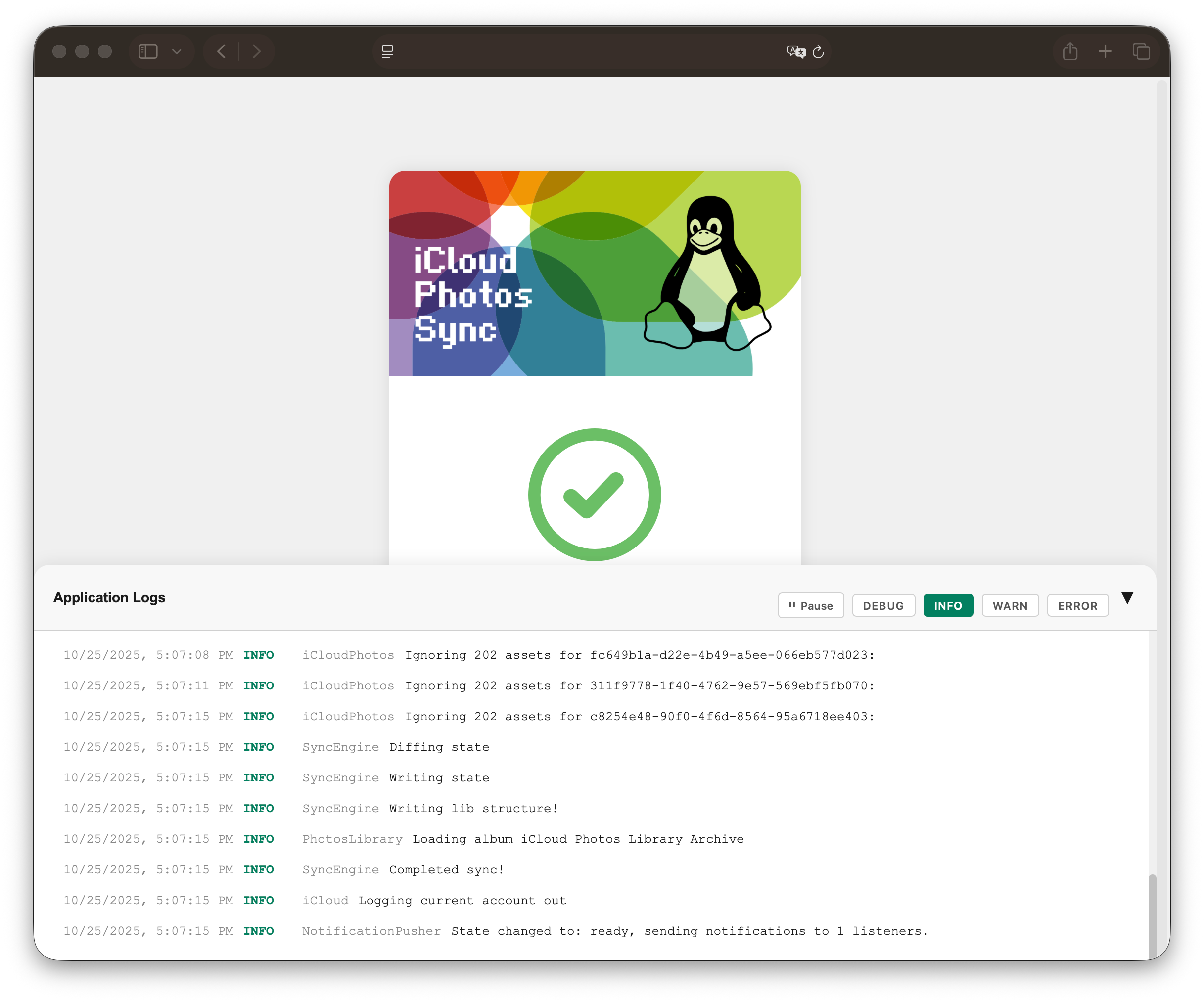
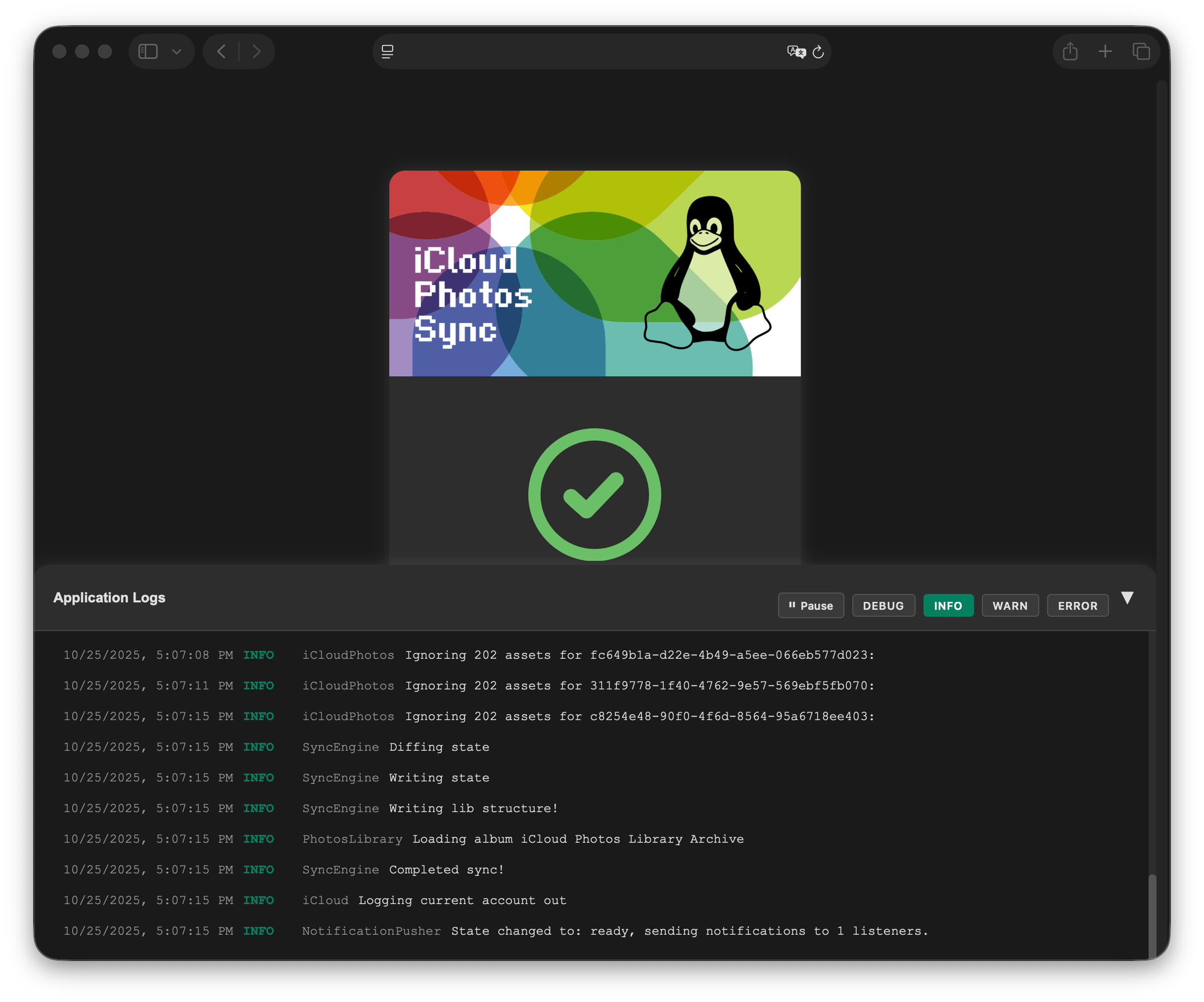
During the sync, the WebUI shows the progress and the current step. The log viewer at the bottom of the page shows the log messages of the current run, more details are available in the CLI output and the log file (.icloud-photos-sync.log in the data dir).
File limits
Syncing a large library might fail due to reaching the maximum limit of open files. The nofile limit can be set in the docker-compose.yml, but might require an increase of the system limits.
File limits
Syncing a large library might fail due to reaching the maximum limit of open files. The nofile limit can be set through a CLI argument, but might require an increase of the system limits.
File limits
Syncing a large library might fail due to reaching the maximum limit of open files. The nofile limit can be increased temporarily or permanently.
PWA & Notifications
The WebUI is implemented as a PWA and can be added to the home screen. It can send push notifications when a sync has finished or an MFA code is required - see the WebUI guide on how to enable them. Notifications require a TLS encrypted connection with a certificate trusted by the device.
Archiving
State of Archiving
The current implementation of archiving should be functional, however has not yet been fully tested in a real world scenario and its implementation is subject to change. I would not recommend relying on this feature heavily.
In order to reduce complexity and storage needs in the iCloud Photos Library, archiving allows you to take a snapshot of a provided album and ignore changes to the album moving forward. This allows you to remove some or all of the photos within the album in iCloud after it was archived, while retaining a copy of all pictures locally.
Optionally, this tool can remove non-favorite photos from iCloud upon archiving (assets of the Shared Photo Library are never removed). The favorite flag on the remaining photos in the cloud can be removed after the archive command completed successfully.
In case the album is renamed in the backend, the archived local copy will be renamed as well, but its content will not change. If the album is removed from the backend, the archived copy will be moved into _Archive. Files and folders in that path (except _Archive/.stash) can be freely modified. After a folder has been put into _Archive, it can be moved back into the folder structure of the library and will be ignored moving forward.
In order to archive an album, the archive command will be used. To automatically delete non-favorite pictures in the album from iCloud, add the remote-delete flag
The library can only be used by one process at a time. Using the previously defined docker compose service, stop the daemon, run the archive command in a new container and restart the daemon afterwards:
docker compose stop photos-sync
docker compose run --rm photos-sync archive /opt/icloud-photos-library/<path/to/album>
docker compose start photos-sync
The library can only be used by one process at a time, stop a running daemon first (docker stop photos-sync):
docker run --rm \
    -v "</path/to/your/local/library>:/opt/icloud-photos-library" \
    --user <uid>:<gid> \
    steilerdev/icloud-photos-sync:latest \
    --username "<iCloud Username>" \
    --password "<iCloud Password>" \
    --enable-crash-reporting \
    archive \
    /opt/icloud-photos-library/<path/to/album>
icloud-photos-sync \
    -u "<iCloud Username>" \
    -p "<iCloud Password>" \
    -d "</path/to/your/local/library>" \
    --enable-crash-reporting \
    archive \
    </path/to/your/local/library>/<path/to/album>
npm run execute -- \
    -u "<iCloud Username>" \
    -p "<iCloud Password>" \
    -d "</path/to/your/local/library>" \
    --enable-crash-reporting \
    archive \
    </path/to/your/local/library>/<path/to/album>
Soft Delete
By default, assets that were deleted from the iCloud Photos Library are also permanently deleted from the local library during the next sync. If you are using this tool as a backup, you can enable the soft-delete flag. Deleted assets are then moved into a trash folder instead, keeping the _All-Photos/_Shared-Photos structure.
The trash folder defaults to _Trash within the data dir and can be changed through the trash-dir option. Relative paths are resolved against the data dir, absolute paths are used as they are (make sure the path is persisted, e.g. by mounting it into the Docker container). The trash folder must not be the data dir itself, nor be located within one of the asset folders.
Assets are kept in the trash folder until you remove them, the application never cleans it up. Assets that are only re-downloaded, because their metadata changed in iCloud, are replaced and not moved into the trash folder.
Docker
Use the environment variables SOFT_DELETE=true and (optionally) TRASH_DIR=<path>.
Additional resources
- Check the troubleshooting guide if something doesn't work
- Consult the common warnings in case any pop up
- Monitor the tool through sync metrics
- Integrate with health check service
- Read about the requirements for supporting accounts with Advanced Data Protection
- Route requests through a proxy
- Restrict the application further through runtime hardening
- Browse your photo library locally using Photoview
Contributing & Feedback
Please check the contributing guidelines to learn how to engage with this project. The document outlines the bug reporting, feature and support request process for this tool.
Consider supporting the development efforts by sponsoring the author.